How CxLens imports your project schedule from P6 or MS Project
CxLens does not keep a live link into your scheduling tool. You export the schedule as a file and upload it, and CxLens ingests the file, rebuilds the schedule inside the platform, and runs a schedule health check on it. Every later revision is compared with the one before, so you can see what moved and which commissioning work it affects.
Two formats, one process
Oracle P6
.xer export · P6 Professional and P6 EPPM
What it reads: Activity IDs and names, early start and finish dates, baseline versus current, WBS hierarchy, and resource assignments when present.
An XER export can contain several projects, so you choose the one to import.
Oracle P6 schedule import →Microsoft Project
.xml export · MS Project 2016 and later
What it reads: Task names, start and finish dates, task hierarchy and dependencies, and baseline dates when the file is exported with baseline data.
Export with File, then Save As, and choose the XML format.
Microsoft Project schedule import →What happens when you upload a schedule
- 01
Export and upload
Export the schedule from your scheduling tool and upload the file to your CxLens project. Record the issued date of the revision.
- 02
Say what the file is for
Mark each upload as schedule health analysis, planning connections, or both. Health analysis checks the schedule itself. Planning connections use its activities as the targets your commissioning checklists link to.
- 03
CxLens parses and rebuilds it
Once you process the file, CxLens extracts all of the activity data, rebuilds the schedule in the platform, and runs the analysis. You get an email when processing is complete.
- 04
Compare every revision
Each new upload is compared with the previous version and with your existing connections. Activities that shifted are flagged against the checklists linked to them, and anything that needs re-connecting is highlighted.
What you get once it is ingested
A schedule health check on every upload, a history of baseline and current schedules, and a rebuilt schedule that your commissioning dates can link to.
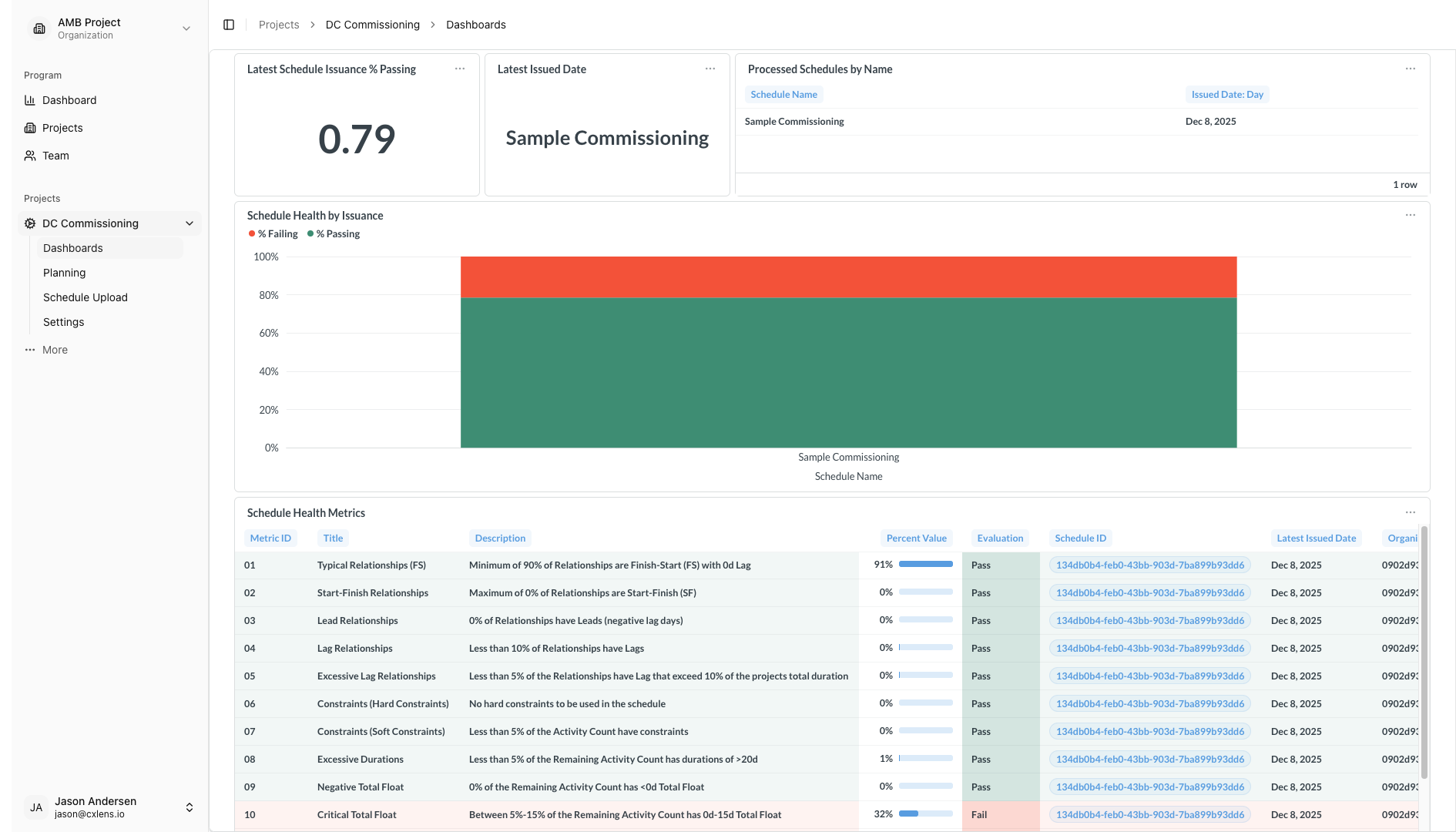
Linking checklists to the imported schedule is the schedule connection feature, and the checklists themselves come from your CxAlloy instance.
Common questions
- Does CxLens connect to P6 or MS Project directly?
- No. CxLens works from the schedule files you export and upload, not from a live link into your scheduling tool. Updates follow your scheduler’s cadence, and each issued revision becomes an upload.
- Which file formats and versions are supported?
- Oracle P6 .xer exports from both P6 Professional and P6 EPPM, and Microsoft Project .xml exports from MS Project 2016 and later.
- What if my XER file contains more than one project?
- P6 XER exports can hold multiple projects. When you upload one, you select the project you want to import.
- What does the schedule health check look for?
- Every uploaded schedule is analyzed automatically for common scheduling issues, including logic gaps, excessive float, and missing baselines, with a pass or fail result for each check.
- How often should I upload?
- Whenever your scheduler issues a new revision. Every upload is compared with the last, so the more consistently you upload, the more useful the history of what moved becomes.
Talk to us about your project
We'll go through your commissioning challenges and tell you whether CxLens can help.
Or email us directly: hello@cxlens.io